
Exploring SSMS 22 - Now Generally Available!


I’m a big fan of the SSMS tool and I’m here trying out the newly released Generally Available (GA) SSMS 22 version. Download was very simple. Link below.
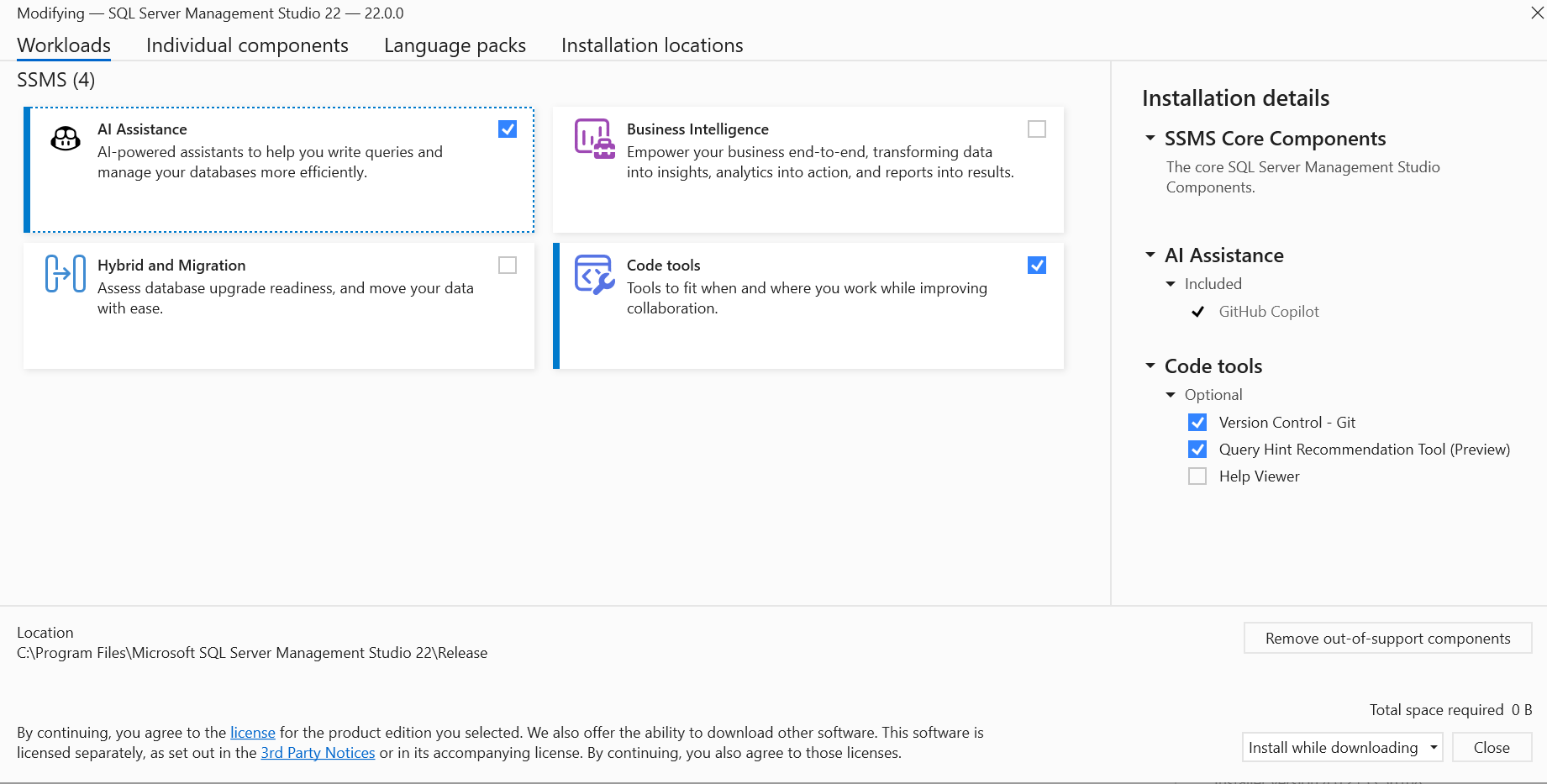
The install is pretty quick and easy, and runs using Visual Studio Installer. You can check the boxes you’d like to try, I checked GitHub Copilot, Git and Query Hint Recommendation tool.
You can import the properties from previous version of SSMS, just like every other new install of SSMS.
Query Hint Recommendation Tool
Open the newly installed SSMS 22 and go to Tools → Query Hint Recommendation tool.
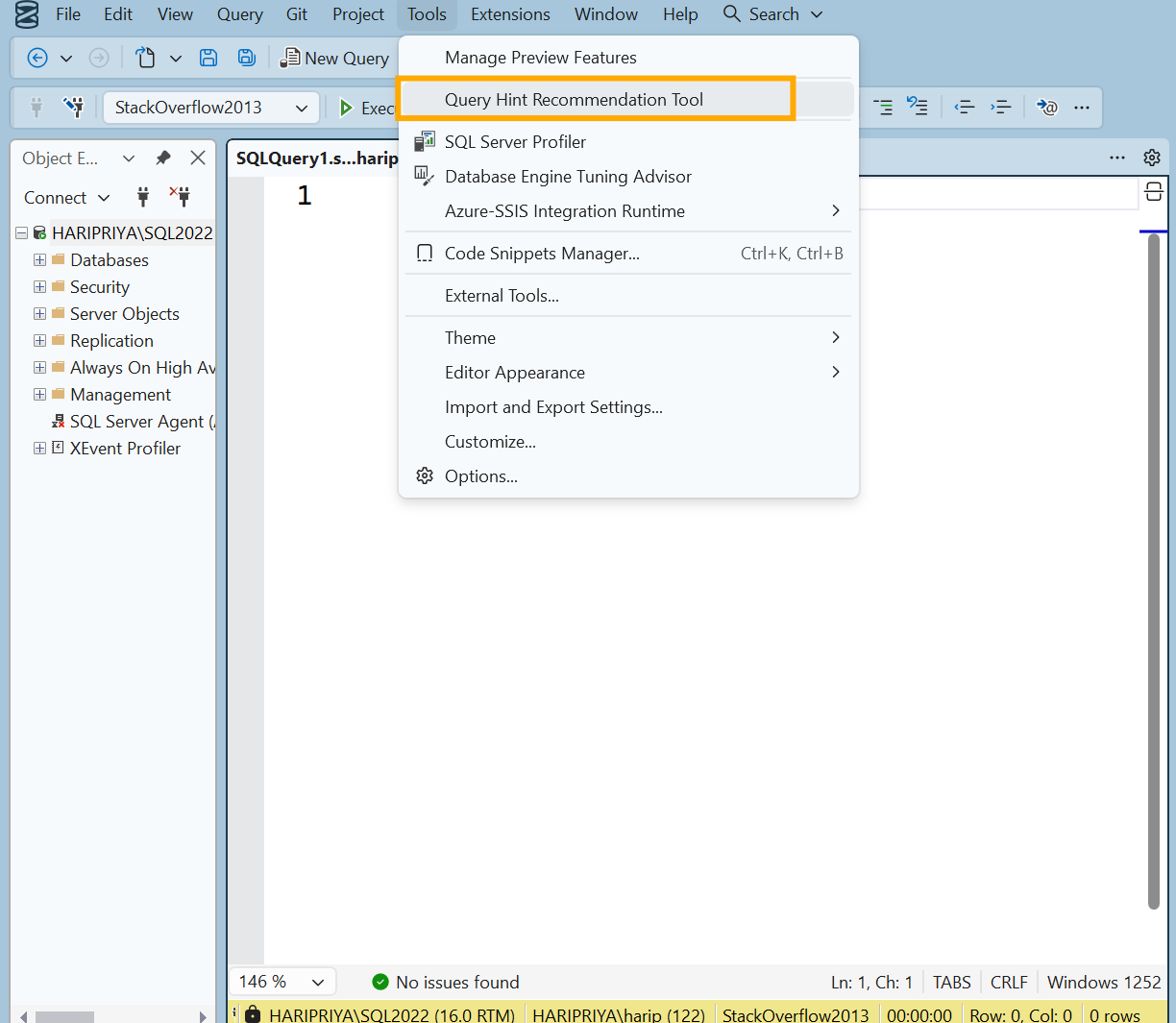
The Query Hint Recommendation tool and Github Copilot open on the right of SSMS
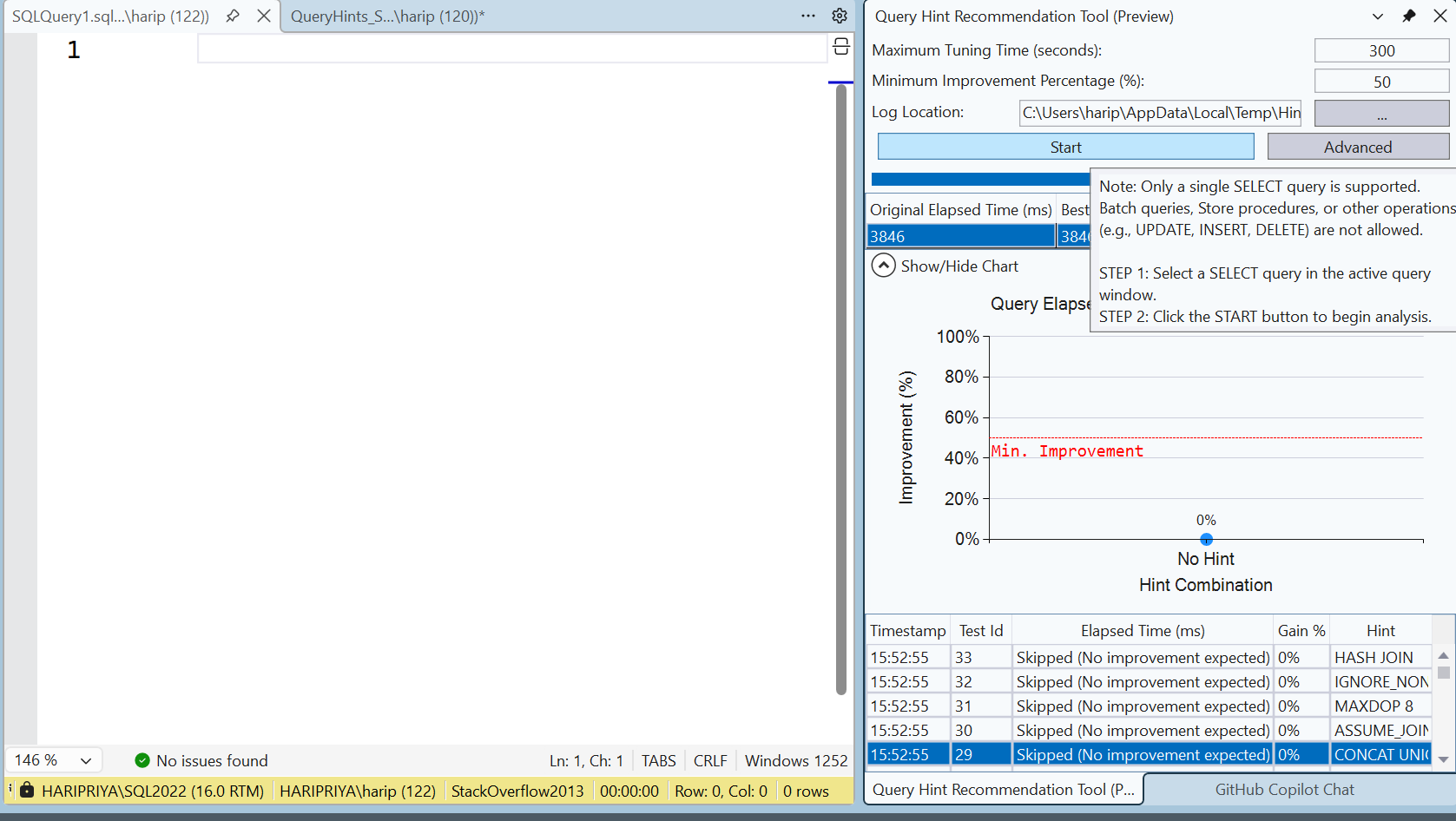
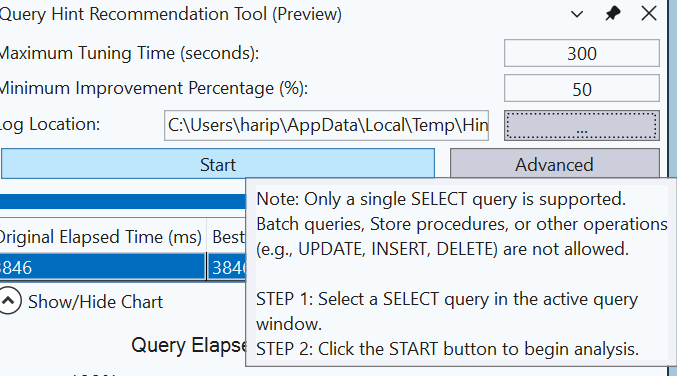
Let me zoom in, you can see the pop up that says - Only a single SELECT query is supported. No DMLs or stored procedures are supported YET. Well this tool is still in preview, so I get it.
Along the same lines, my coworker and I developed a PowerShell based tool, when you give it a .sql file, it will try different set of hints and recommend the optimal hint for the query. The input sql file can contain adhoc queries or stored procs. When I saw a similar tool being released in SSMS, I was elated as we were working on a similar model. The tool we are developing, is a decoupled one though, not attached to anything. Alright, back to story..
If you hit ‘Advanced’ tab, the hints that will be tried are displayed. I like how Legacy CE hint is also tried, because that is something we use a lot at work and that hint is more helpful than you can imagine.
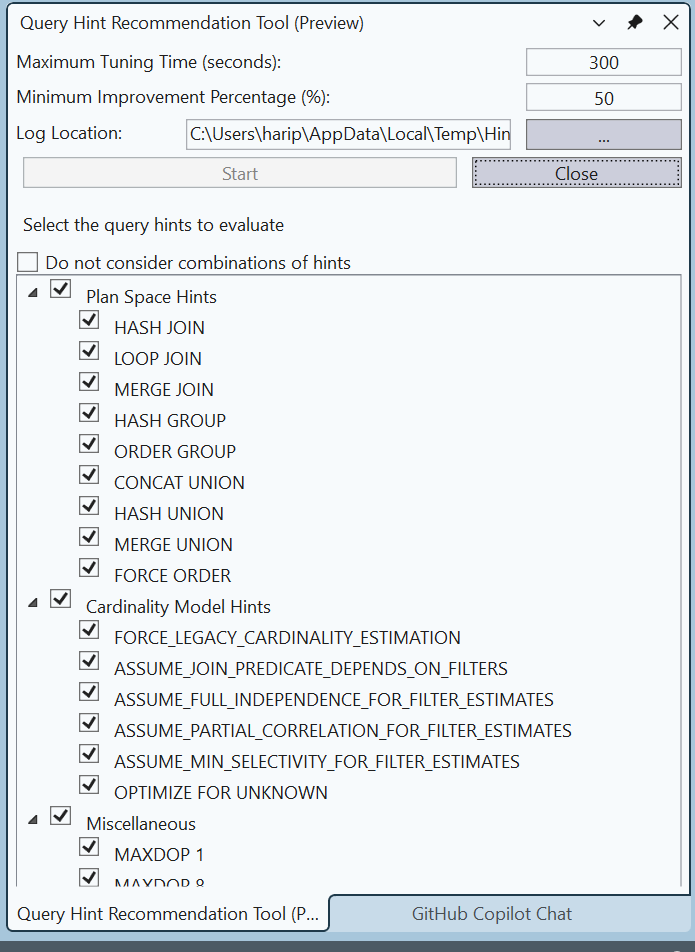
Testing the Query Hint Tool
Then, I used Claude Code to generate some SELECT queries based on StackOverflow2013 database.
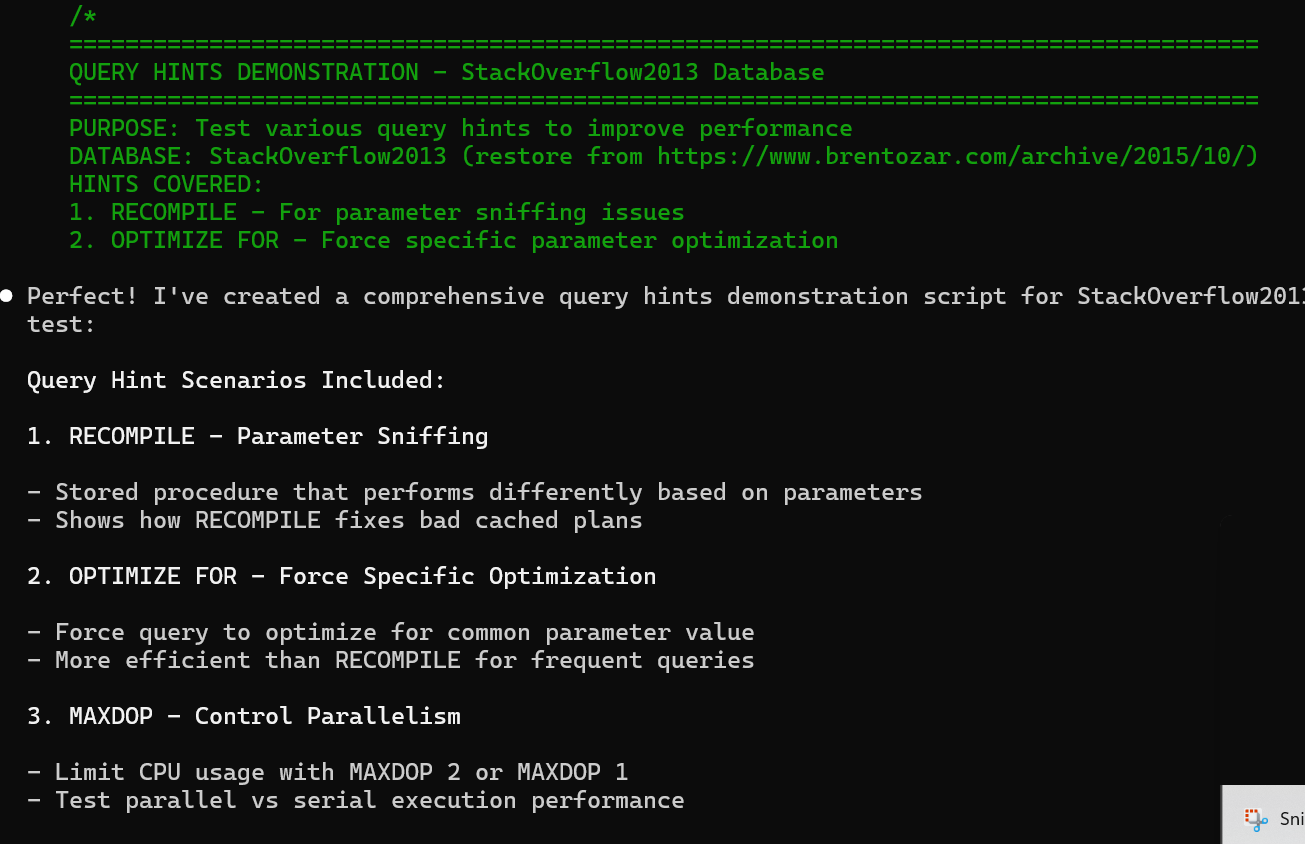
Now I opened this generated file from SSMS.
Highlight the select statement and hit Start on the Query hint recommendation tool. It will start checking which hint works better. (Don’t hint execute in SSMS tab.)
You can also configure the following in the tool:
Tune Minimum Improvement %, default is 50, I set it to 5.
Set maximum tuning time, default is 5 mins. This means, it will try tuning for a maximum of 5 minutes.
Set logfile to your preferred location
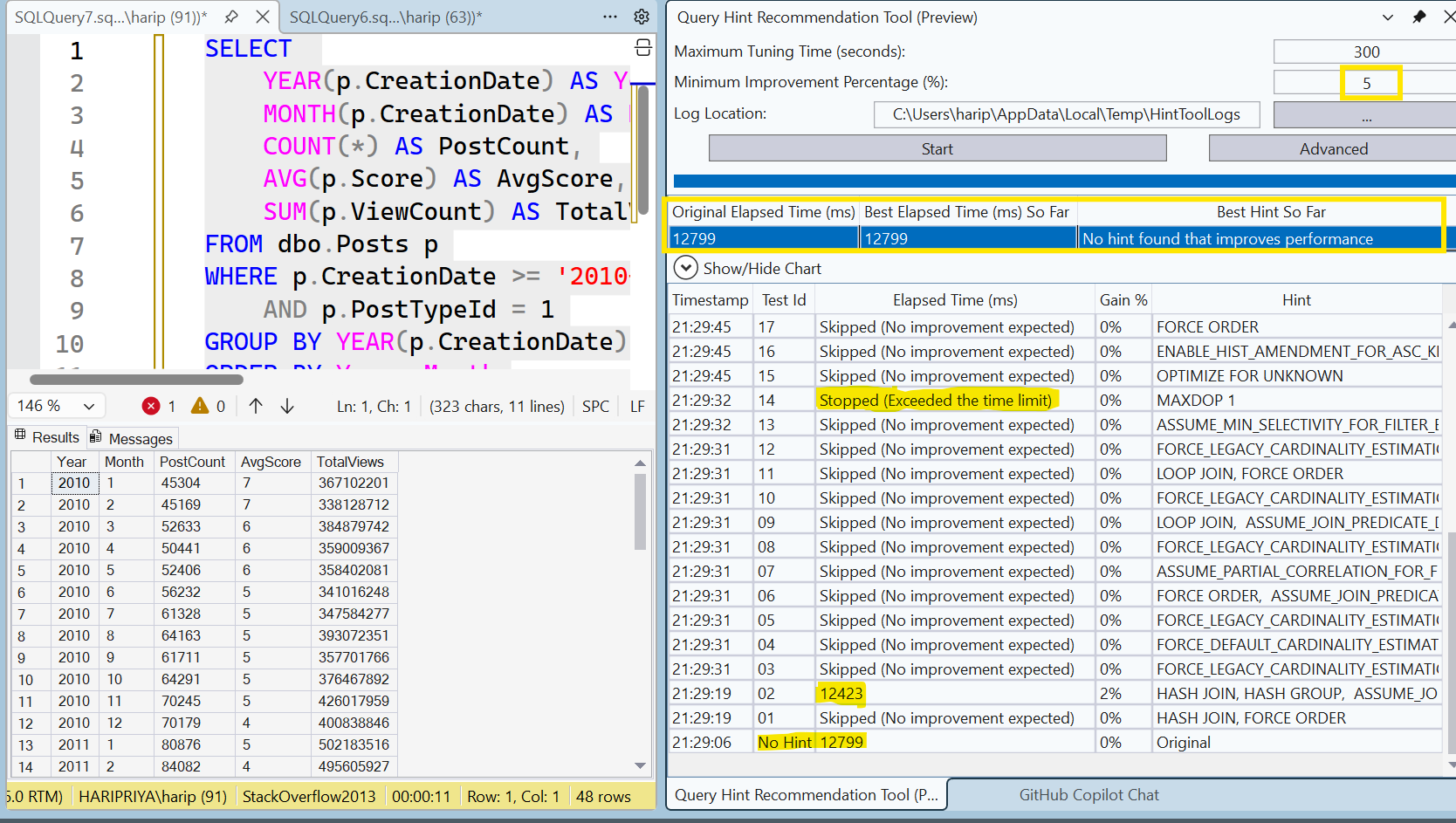
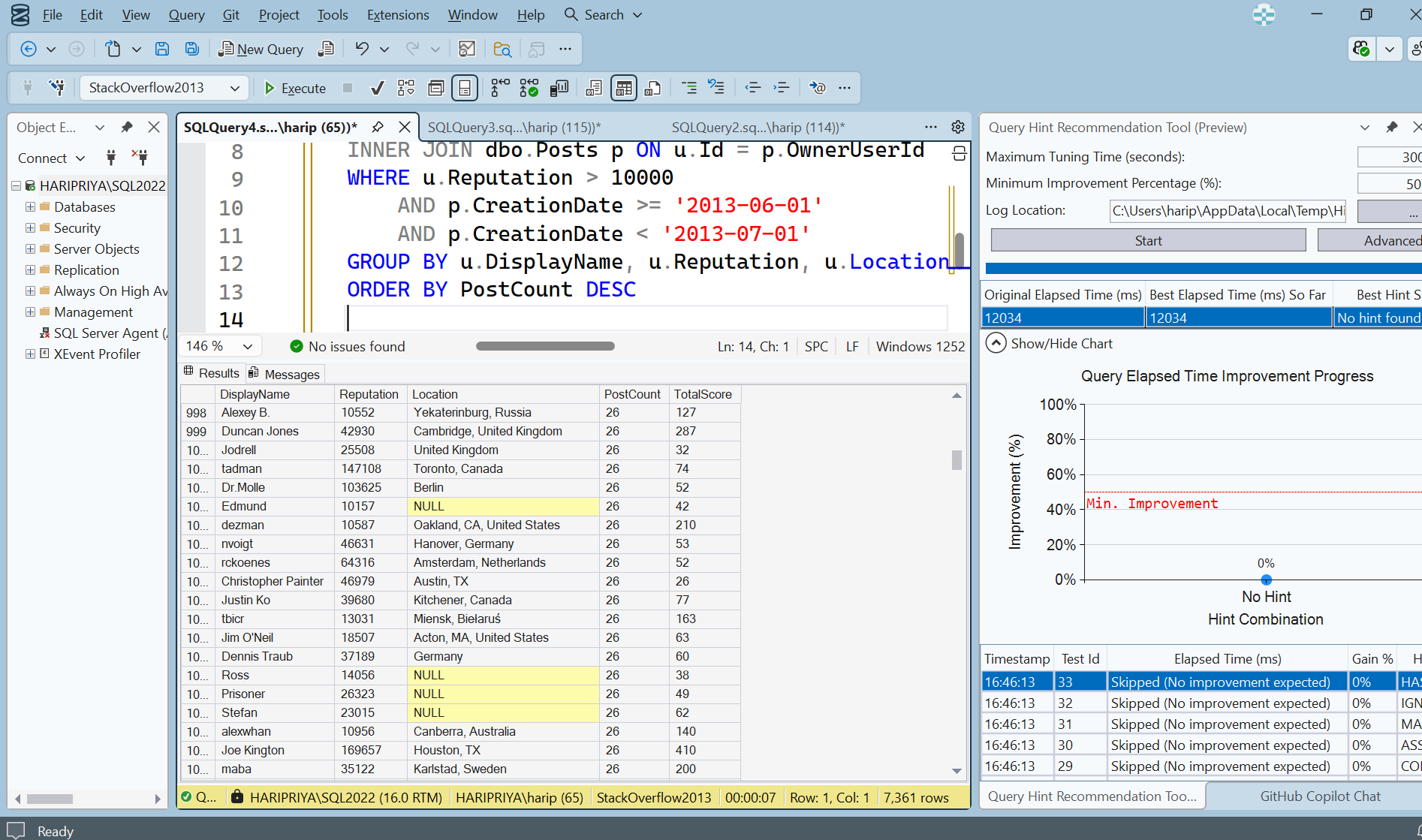
Looks like the one I tested above, didn’t need any hint.
It actually gives you the list of hints it tried, how long they took, and if they took longer than the the original query it skips or stops testing the hint and moves on to the other hint. It provides the original elapsed time and best elapsed with or without hint. I’ll try more queries at a later time to see how well the recommendation goes. So, that is about this tool for now.
GitHub Copilot Chat
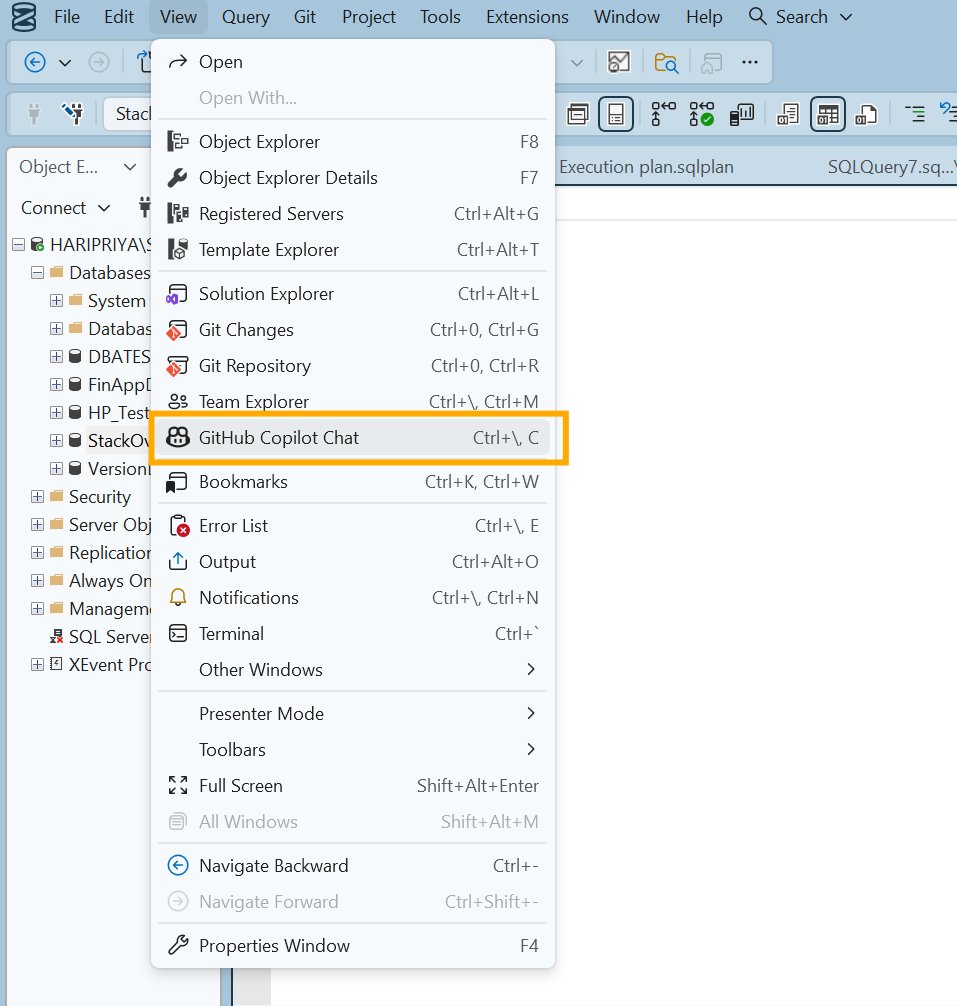
You can open up Copilot chat from View tab.
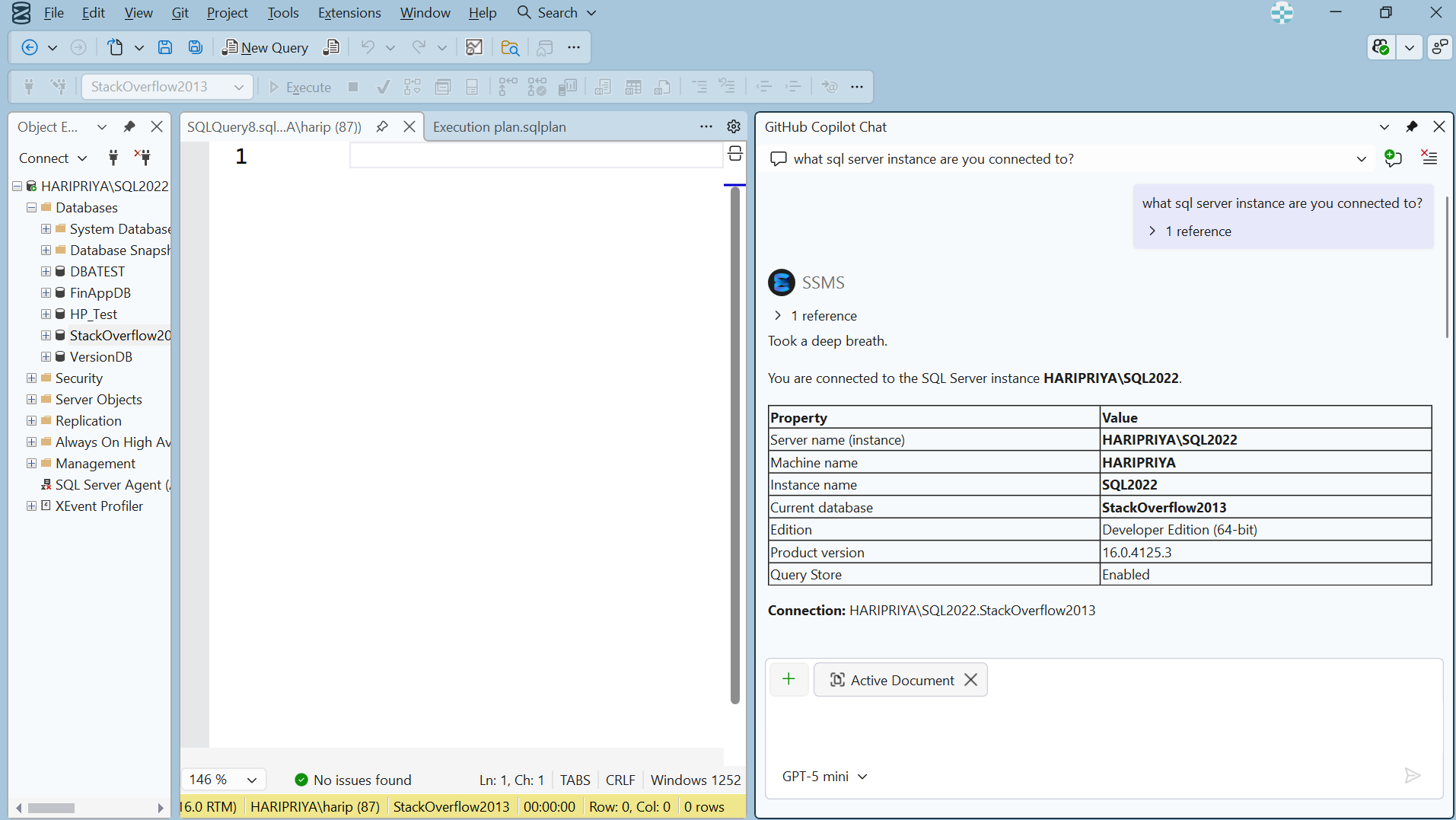
Chat opens up on the right side of SSMS. I asked it a couple of questions. First one being, which SQL Server are you connected to , and it gave enough details.
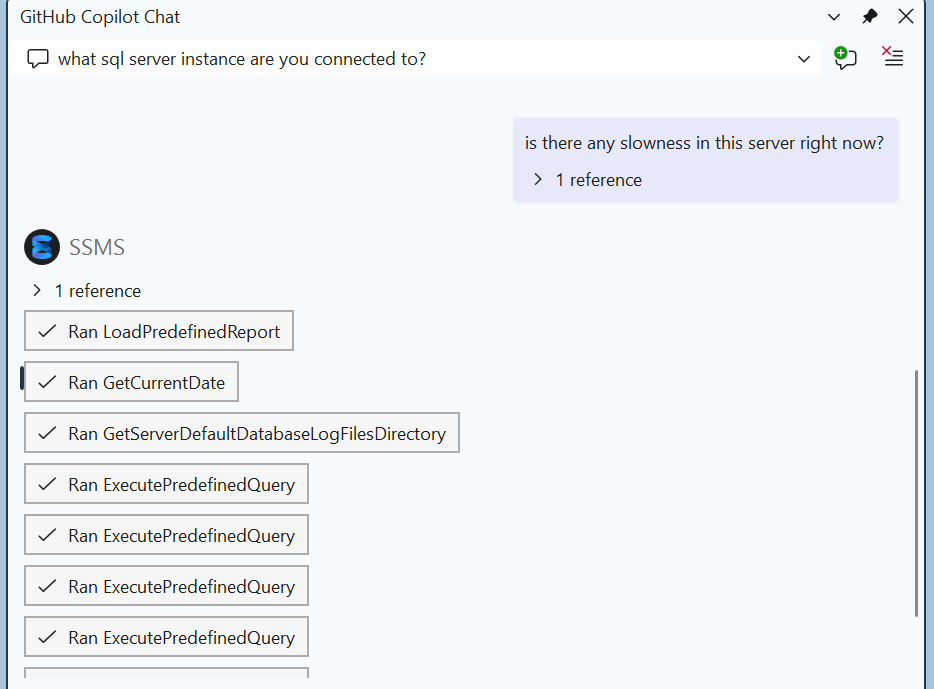
Then I asked if there was any slowness on the server. It ran a bunch of queries and I’m not sure what the codebase is.
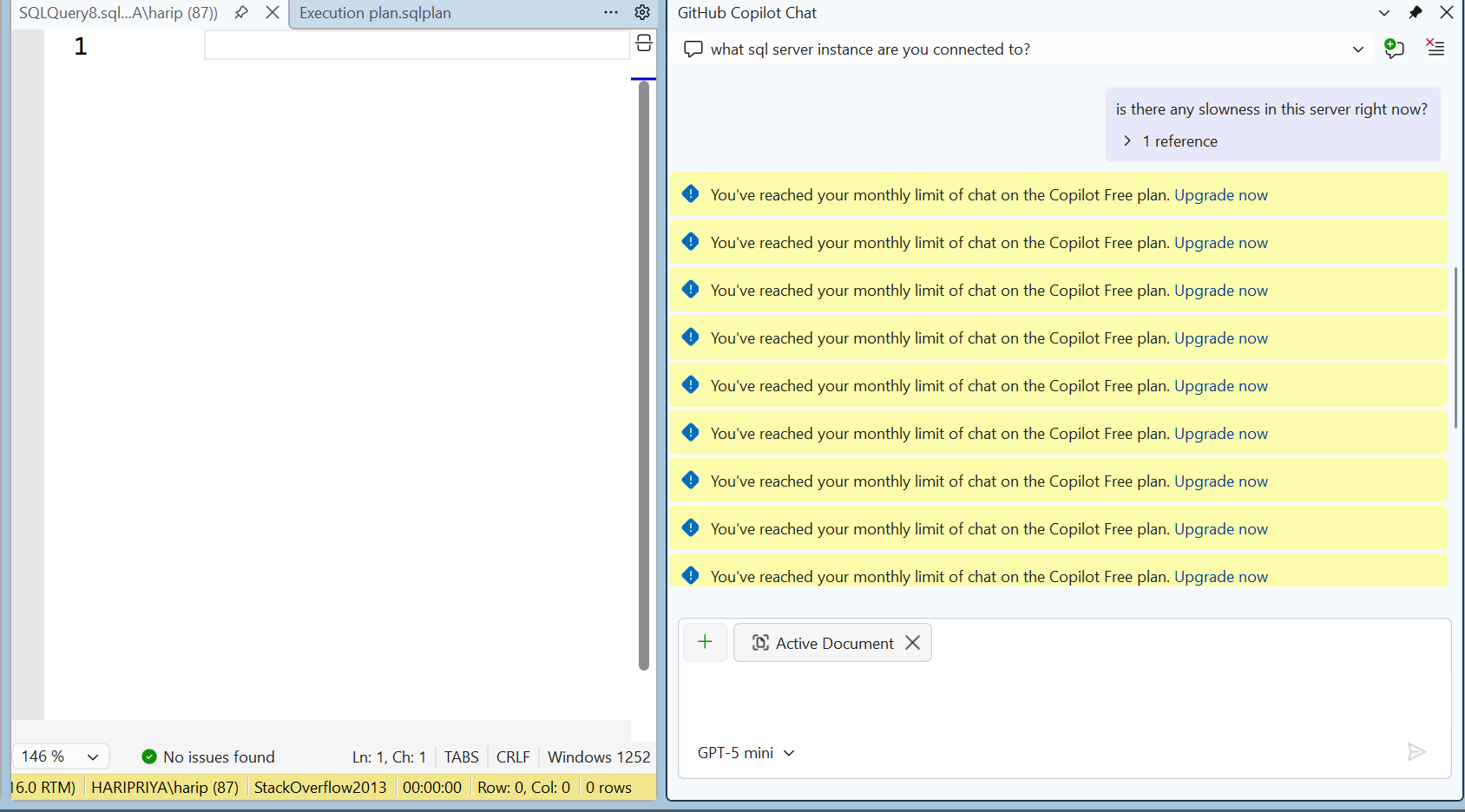
After a few mins, I got this - Reached your monthly limit, upgrade now… HAHAHA.. Well, this is free tier, so there we go!
Alright.. let’s check other things in the SSMS then..
NULL Value Highlighting
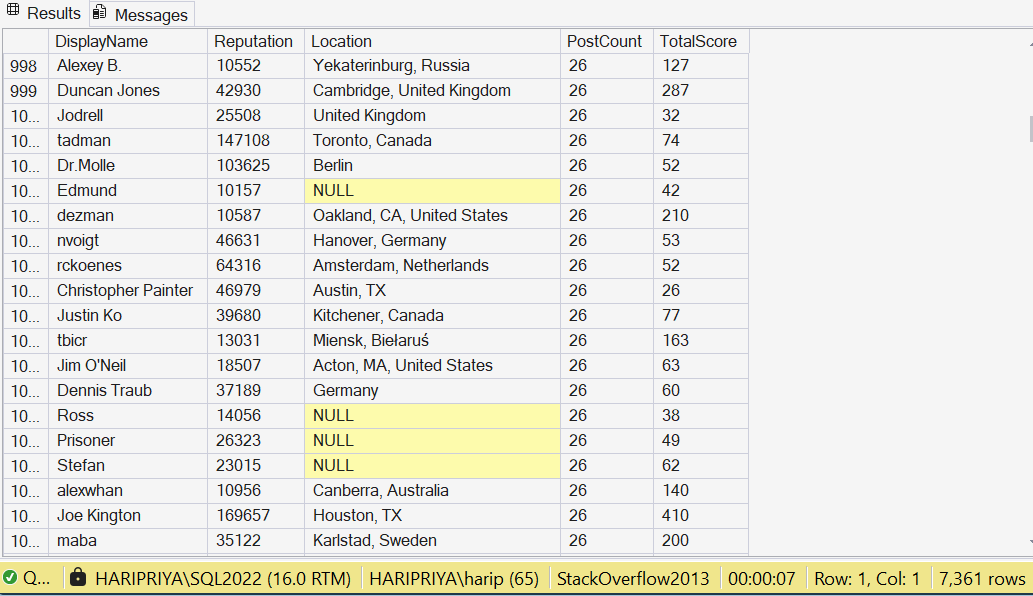
The other thing that I liked about this version is, NULL values are highlighted in yellow. NULL values were lightly colored in previous versions, but I don’t recall having it brighter like this, which actually helps for development.
Improved Color
I like the look of default color mode, soft blue, gentle to eyes. I’m not a big fan of dark mode, so this soft blue seems to work for me.
Git Integration
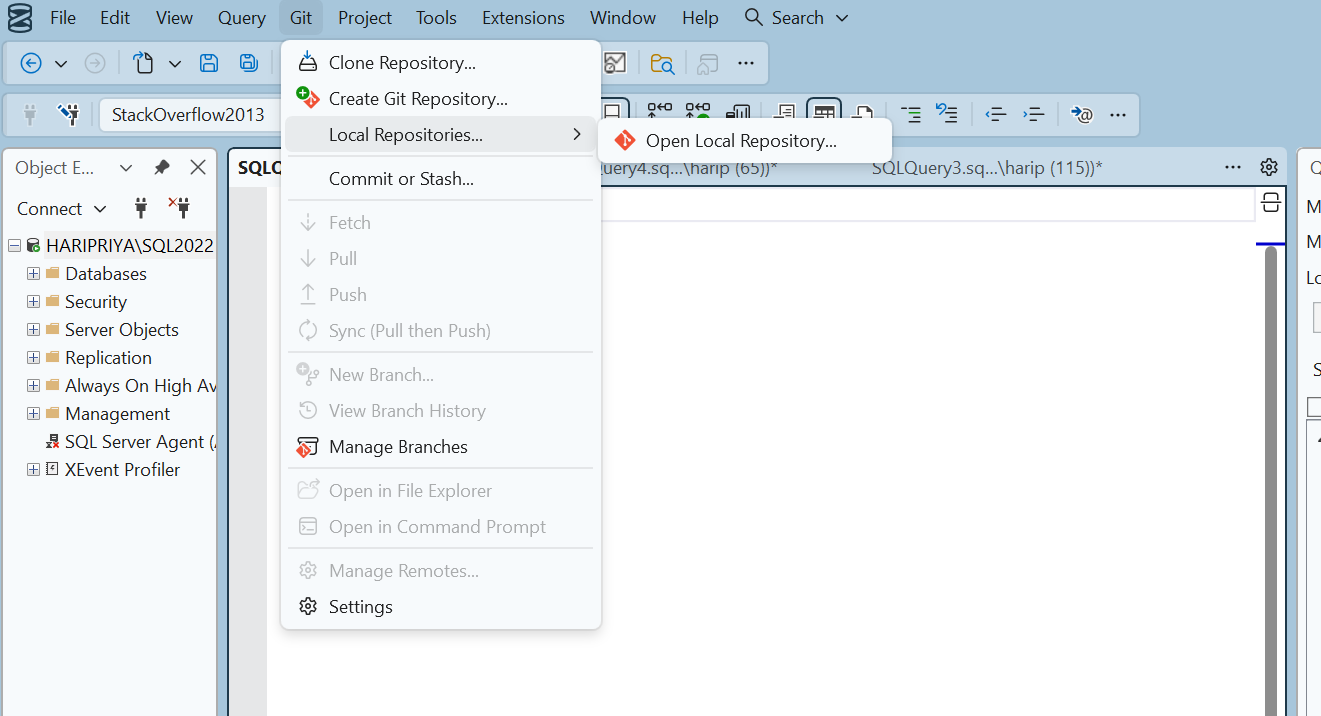
You can also connect to Git and it was easy to sign in.
Execution Plan in New Tab
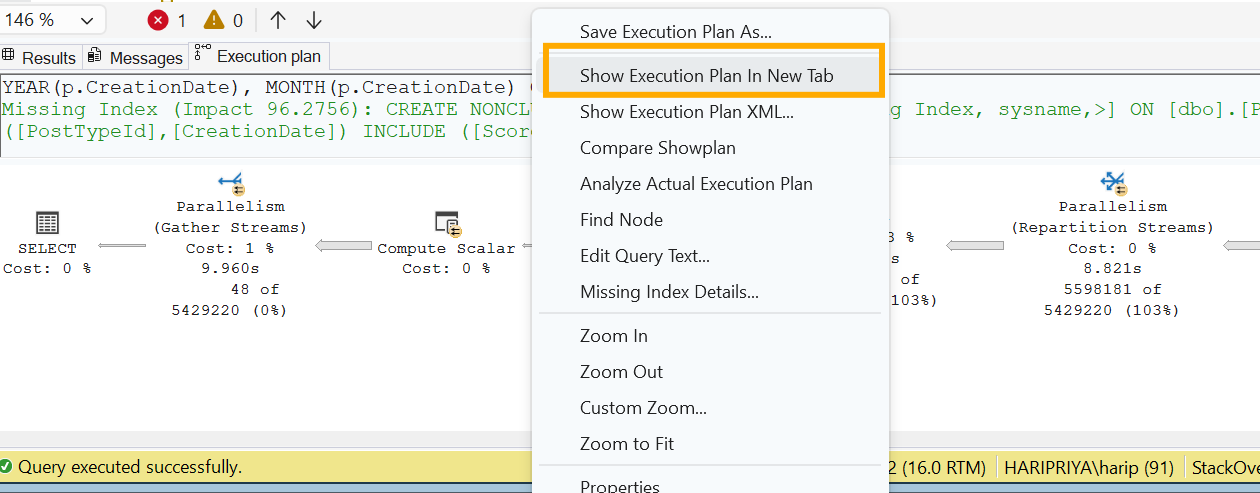
Finally, there is an option to open execution plan in a new tab, so you can keep re-running the query from same window and open up multiple execution plans for comparison, instead of saving each plan or opening up multiple windows to run the same query. Turns out this was suggested by Erik Darling.
Close idle SQL connections
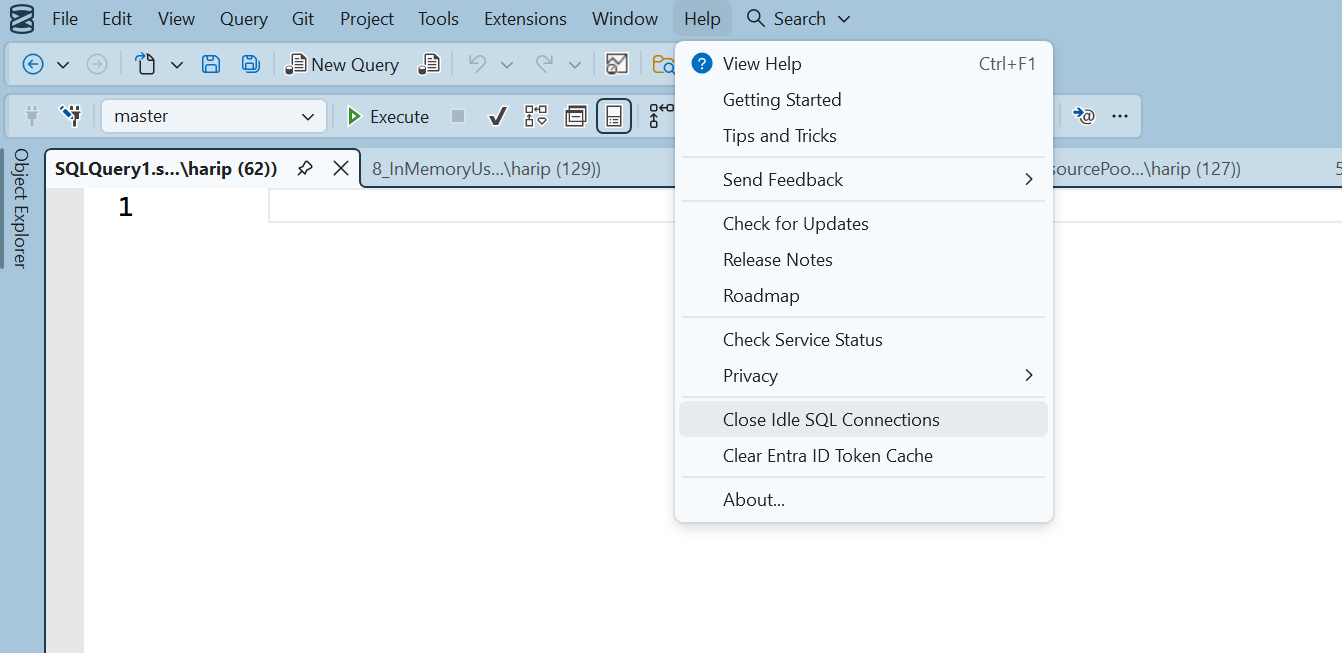
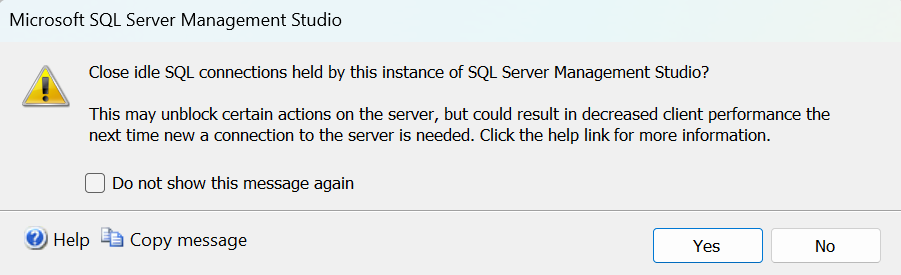
This is an option to close all idle connections from your SSMS. I like this option, especially when you’re connected to many instances or running many things at a time, and at the end of the day you just want to stop only the idle connections. (You can also disconnect all queries by right clicking the connections, but it disconnects all connections including the active ones.)
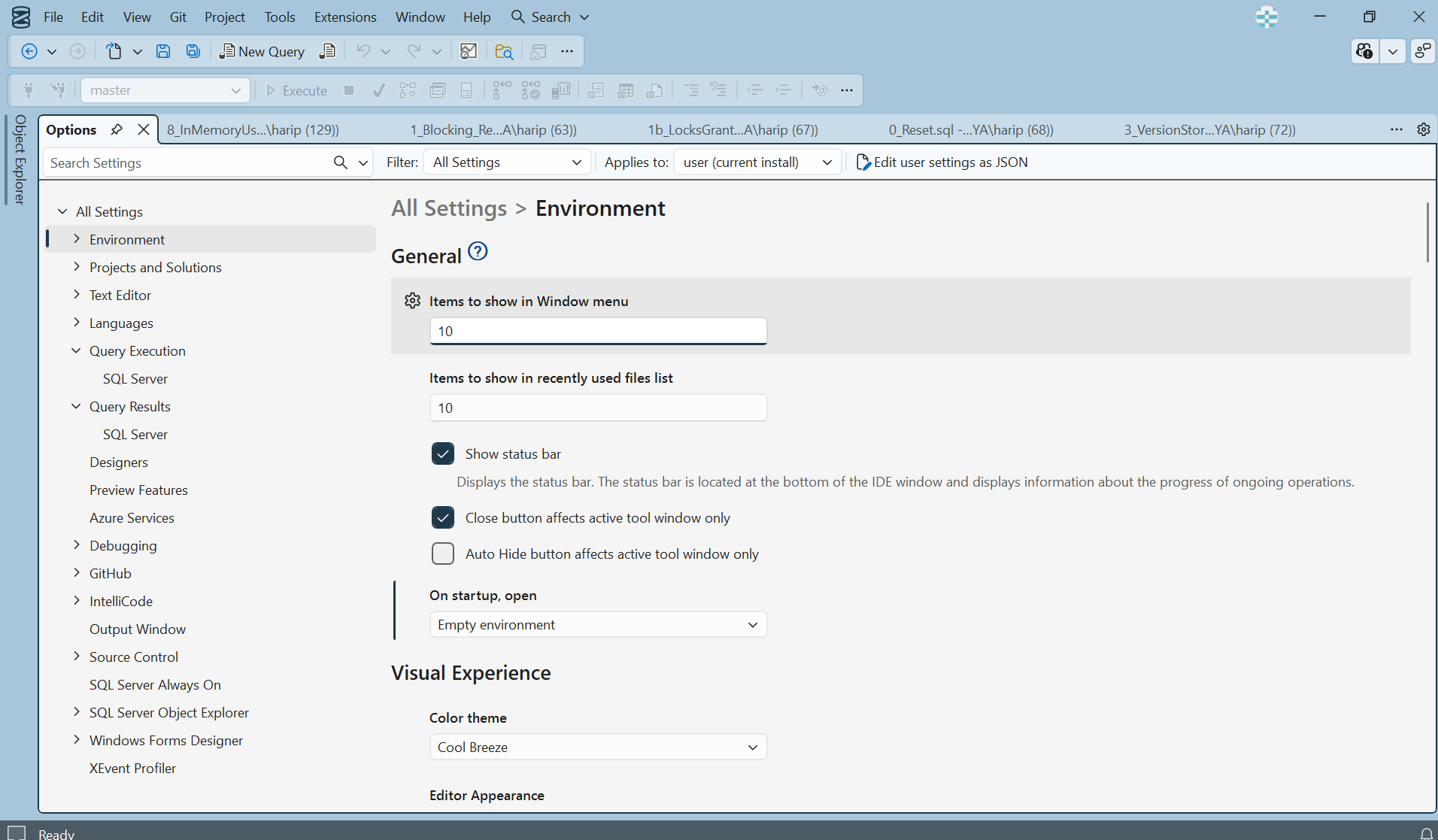
Lastly, “Options” under Tools show up as a tab instead of a pop-up.
I’ll update this blog as I keep playing around, and I’d love to hear what features you’ve tried in SSMS 22 and what’s working well for you!
Resources
https://learn.microsoft.com/en-us/ssms/release-notes-22#whats-new-in-2200
Thanks for reading,
Haripriya.
My LinkedIn
Excellent analysis! I appreciate this comprehensive look at SSMS 22. The integration of tools like Copilot and the Query Hint Recommendation are crucial for optimizing database performence. Thank you for clearly highlighting these important advancements.